University at Buffalo (UB)
Virtual Backgrounds
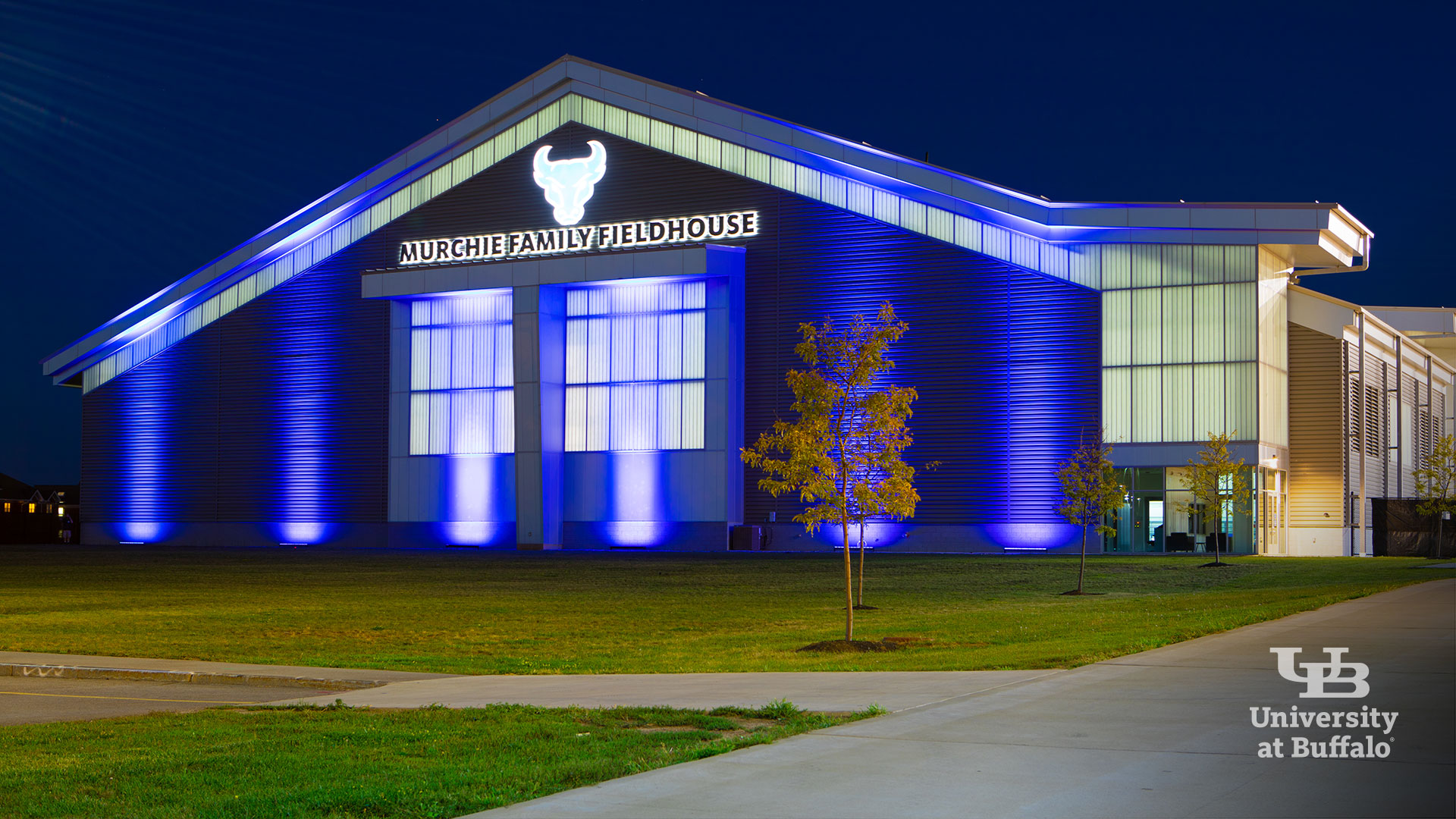
Connect with your campus community and share your UB pride no matter where you are. Choose from iconic locations, favorite hang-out spots, serene landscapes and more for your Zoom background or desktop.
On this page:


Desktop
- Click the gear icon in the upper right corner of the Zoom application window.
- Select the ‘Virtual Background’ option on the left side of the screen.
- Click on the ‘+’ to the right of ‘Choose Virtual Background’.
- Choose the custom UB image from your computer.
Mobile devices
- Open the Zoom App.
- Start your meeting.
- Select the ‘more’ menu on the bottom left side of the screen
- Select ‘Virtual Background.’
- Tap the ‘+’ to add a custom UB image from your device.
Note: You may be prompted to download the ‘smart virtual background package,’ if needed, before adding your own background.
Remember to uncheck the 'mirror my video' setting within virtual background to ensure logos and marks appear correctly.
UB background downloads
- Click an image below to enlarge.
- Right click and "save image as..." to download.